
Starting October 6, 2026, you can paste photos straight into the Roamer AI chat and tell it where they go. It uploads them to your WordPress Media Library, then puts them in the right place on your site.
Putting your own photos on your website used to mean going into the WordPress admin, uploading them to the Media Library, then opening the page and adding the images. Now you can hand both steps to Roamer AI. On a computer, press Ctrl+V to paste, or drag the photos straight into the chat. On your phone, tap the paperclip next to the message box and pick photos from your photo library.
This feature is included in WP × Roamer AI Pro. If you're already on Pro, there's nothing to set up.
See it in action: three opening-day photos become a blog post
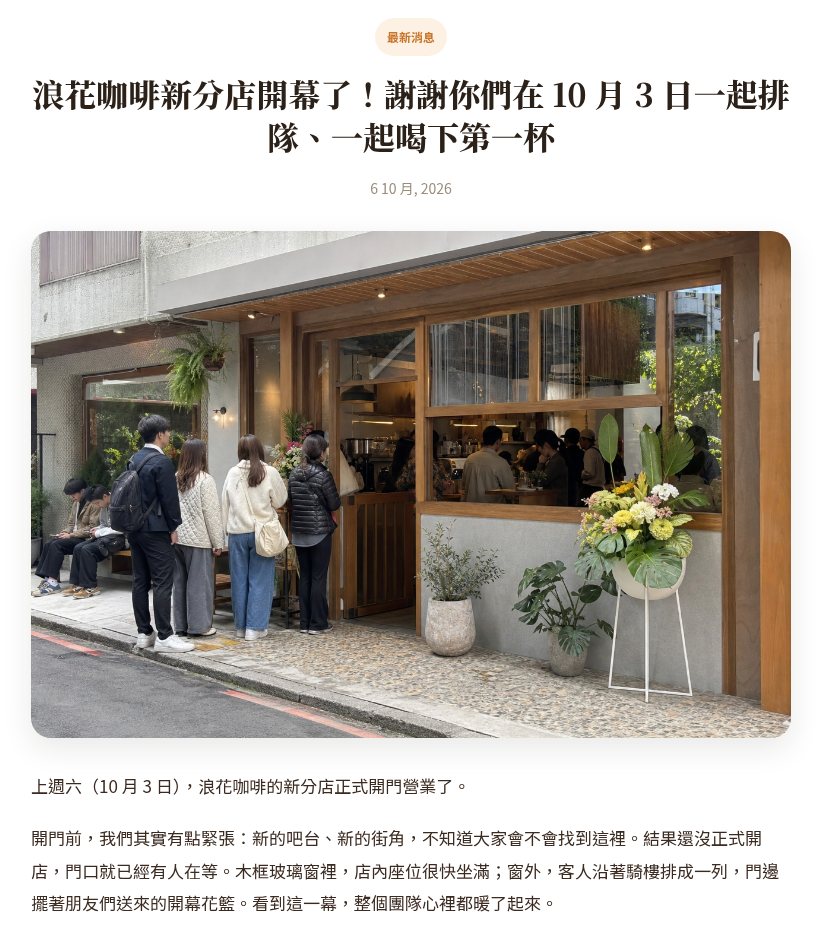
On our test site, we pasted three photos and said: "These are from our new branch's opening day last Saturday. Write an opening post with all three for the News section, and use the first one, the storefront, as the cover."
Roamer AI looked at the photos and recognized the line of customers and the grand-opening flower baskets at the storefront, the pour-over at the counter, and the lattes with Basque cheesecake. It uploaded all three and published the post, with the storefront photo as the cover and the other two in the matching paragraphs. We hadn't given it the branch address or opening hours, so it didn't write them. It just reminded us that once we filled them in, it could add a "How to find us" section.
More ways to use it
Blog posts and event recaps. "Write an event recap with these photos." It writes from what's actually in the photos. Anything the photos can't tell it, like the shop name, date or prices, it asks you about first instead of making it up.
Swap images on a page. "Put this one in the brand story section on the home page." "Use this team photo on the About Us page."
Add product photos. "These three are photos of our new product, please list it." The images go straight onto the product page.
Change your logo. "Change the site logo to this." PNGs with a transparent background stay transparent.
Screenshots still work as usual
Paste a screenshot of an error to ask about it, or paste a screenshot and say "change this part to look like this," and Roamer AI only uses it to look at. It won't put it on your site. Only the photos you say you want to use get uploaded, and when it isn't sure, it asks you first how you want to use the photo.
Photos are prepared before they're uploaded
Just paste the original photos from your phone. Photos that are too large are automatically resized for the web, vertical shots are automatically turned the right way up, and details like where the photo was taken are removed first, so they never end up public on your site.
You can attach up to 3 photos per message. If you have more, send them over a few messages. Later in the same conversation, it can still find a photo you pasted earlier when you say "the photo from earlier." Not happy once it's on the page? Just say "undo."
How to get started
If you're already on Pro, open Roamer AI and try pasting a photo. If you're on WordPress Basic, open your site under "My Projects" and click "Upgrade to Pro." It takes effect as soon as you pay. Basic also comes with a few conversations each month, so you can try it out first. If you don't have a WordPress site yet, just start a Pro site, and your hosting, website and Roamer AI will be set up together.
See WP × Roamer AI plans and pricing Roamer AI Now Designs from Scratch: Just Describe the Feel
